DNA Match data input
Last update: 2026-03-15
Overview
New in RootsMagic 10 is the DNA Table
It's not a shared fact, nor an association but a new relationship stored
in the DNA Table.
The DNA Table is accessed via the person edit window and displayed by clicking the stylized "DNA" icon in the window's left side bar.
This document does not discuss how the DNA match data is to be analyzed, only how it is entered.
Here is the relevant windows for reference:
The DNA Match list display window (the list is empty in this image):
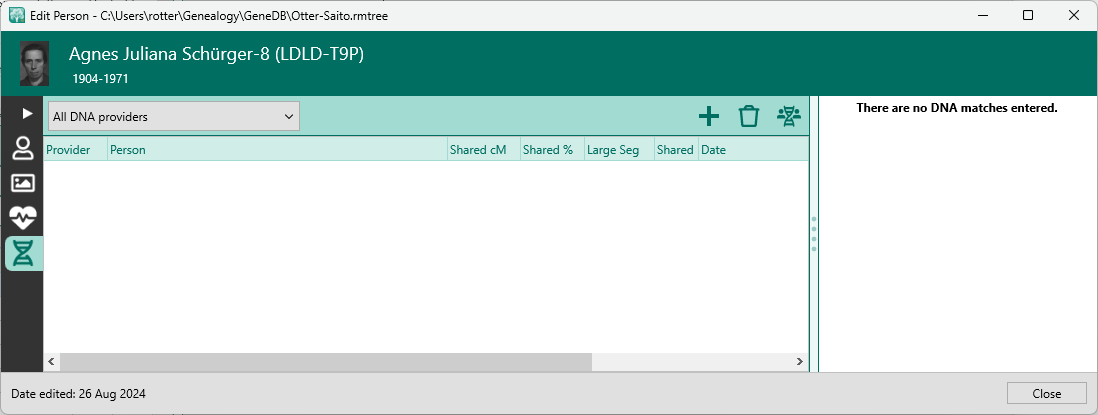
The column headings are:
- Provider
- Person
- Shared cM
- Shared %
- Large Seg
- Shared Segs
- Date
- Rel (Tree)
- Rel (DNA)
The DNA Match entry dialog:
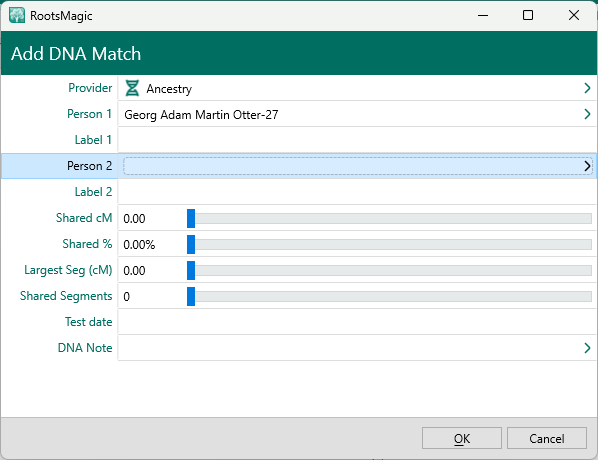
The field labels are:
- Provider
- Person 1
- Label 1
- Person 2
- Label 2
- Shared cM
- Shared %
- Largest Seg (cM)
- Shared Segments
- Test date
- DNA Note
Overview of the procedure for entering match data:
- Create entries in the DNA Table.
Enter the data for the fields using the match data from the DNA service's website, but for the "Person 2" field, select the "initial pseudo-person" (see below). I might do this for 50 entires at a time using an automated method. - At a later time, go through the entered matches and for each, examine the data available- matchee's name, closeness of match, matchee's online tree, shared matches list etc.
- For each entry, reassign the Person 2 field from the 'initial pseudo-person'
assigned in step 1.
Change it from the "initial pseudo-person" to:
3.1 either another, more appropriate pseudo-person
3.2 or to a newly created real Person that represents the matchee.
3.4 or to an existing Person in the database. - For real Persons, add as many facts, weblinks, and tree connections as the evidence supports.
- Go back to step 2. Re-examine the match data and repeat the following steps.
Before starting entering DNA matches into the DNA table, create at least the initial pseudo person named '[lev 0=initial] [_DNA]'. See the section on Person entry, below for more details on the pseudo-people and their roles.
The process is described in more detail in the following two sections- DNA Match entry and Person entry.
DNA Match entry
At the service's website
Open your service's web page listing your DNA matches.
If your account manages more than one test, be sure the correct one is selected.
For the services Ancestry, MyHeritage and 23andMe, don't transcribe data from the list of matches, instead click on the match item in the list to open the details page for the specific match.
(TODO GedMatch info in process)
Most efficient is to open about 5 entries, each in their own browser tab. When an entry is finished, close the tab. In this way, one can easily "keep your place" in the list that is being entered.
(Trying to open more that about 10 seems to cause Ancestry to throttle your requests and some windows will need to be F5'd to try again. Five at a time seems to always work.)
In RM
Display the DNA Table in the person edit window and by clicking the stylized "DNA" icon in the window's left side bar.
The DNA match table can be filtered by the DNA Provider. The filter is initially set to "All Providers". This setting does't affect data entry.
However, it makes sense to select the filter to correspond to the service whose DNA matches you will be entering. If you leave it set to All DNA providers, all of your previous data will be visible and clutter the view. If it's set to a different DNA provider, then the matches you enter won't be visible as you enter them.
Click the ➕ button at the top of the DNA table window and start entering the data.
Each entry has the following fields:
DNA Provider
Select the name of the service that did the DNA matching with other DNA test takers.
(IMHO, this setting should be named "DNA matching service".)
Be sure to confirm that the DNA provider selected is correct when starting to do data entry. If it doesn't correspond the the filter in the window, you won't see you entry.
Person 1
This field will be auto filled to be the person whose edit windows you are working in. It will be the person whose DNA match results you manage at the DNA matching service. It will likely be you.
Label 1
This should be Person 1's user name at the DNA provider site used above.
(After you have done some data entry, the field is filled in with a default value. That value is the first Label 1 that you entered for the Person 1 under the selected DNA provider.)
Person 2
This is the person matched to Person 1. Clicking this field displays the RM Explorer window which lets the user find an existing person in the database, or allows entry of a new person.
The RM workflow forces the user to enter a person right away. This is quite inconvenient. When I create a new person in the DB, I like to spend a bit of time to add correct facts. In this flow, one can see the person add window, but the edit window does not appear and is not accessible while the Add DNA match modal window is open. That has inspired an approach that uses pseudo-persons. This also avoids creating database persons for matches unlikely to ever be identified.)
- Be sure you have a pseudo-person in the database named '[lev 0=initial] [_DNA]'.
- Use the Explorer window to select this Person.
This selection will be updated later. See Overview section, above.
Label 2
Enter the exact user name of the person matched at the matching service. Copy and paste is best. Label 2 is important- it is the name used at the matching service for the matchee. It is how you can find the match in your match list at the service website.
Shared (cM)
Ignore the slider controls. They do not help in data entry.
Enter the number of shared centiMorgans provided and tab to the next field.
23andMe: Provides only the per cent shared DNA number. To determine cM, use the tool at- https://dnapainter.com/tools/sharedcmv4 (it might just just a multiplier of about 74) 0.5 * ~74 => 37 cM 1.0 * ~74 = 74 cM 2.0 & ~74 = 149 cM
(TODO investigate why. May have to do with absolute numbers of shared nucleotides vs. the rate of recombination expressed by the # of Morgans.)
Shared %
Ancestry: If <1%, leave it blank.
Largest Seg (cM)
Enter the number provided.
Shared Segments
Enter the number provided.
Ancestry: Notice that the number of shared segments is indicated in the main list, but not when the listing is opened. In the match details window, one needs to click the link to open the pop-up window.
Test Date
Test Date field is actually used as "Date entry last updated", specifically last online access of data.
If you have done more that one DNA test, then the kit number or other identifier should be indicated by your user name at the matching site, which is entered as here as Label 1.
DNA Note
Free form text. We want to capture as much as possible of the data from the DNA match website.
Define the format for each match provider as shown below-
Ancestry
DNA Note Sample Entry
URL=----=
https://www.ancestry.com/discoveryui-matches/compare/855339eb-af29-43ec-bb83-bce76aff38fa/with/a583d4cb-19ab-4ec5-b438-e1a8696c1a9a
=----=
Accessed=--=9 March 2025

Page Title=--=AncestryDNA® Matches Compare

Test name=--=Roman Otter
Match name=--=James Heeley

Shared DNA (cM)=--=20 cM
Longest shared segment=--=22 cM
# shared segments=--=1
Unweighted shared DNA (cM)=--=22 cM

Estimated Relationship=--=4th cousin or half 3rd cousin 1x removed
Match on Maternal/Paternal =Maternal side

Ancestry group memberships=--=

User entered match note=----=
=----=

Has Linked Tree with 804 people.

ORA template v2025-03-09-1

===========================================DIV50==
_NOTES

Tree:
Shared matches:
Placement:


===========================================DIV50==
_CORRESPONDENCE
-----------------------DIV30--
-----------------------DIV30--
===========================================DIV50==
The NOTES section is where I manually enter my research activities regarding this match. I copy correspondence relevant to the match in the next section, using -----------------------DIV30-- to separate the messages.
How to
The sample entry above is the output of my ORA autotype template.
Longest shared segment and Unweighted shared DNA are from pop-up window.
To use the ORA autotype (and more info on the pop-up window), see the section below- "ORA AutoType templates for entering DNA Matches"
MyHeritage
DNA Note Sample Entry
URL=----=
https://www.myheritage.com/dna/match/D-ED9X522N-E728-LTW1-D9E2-D9E258U227X9-D-A360132A-784D-4FEE-86A0-A36C59DD8348/
=----=
Accessed=--=20 March 2025

Page Title=--=Review DNA Match - Otter-Saito Family - MyHeritage

Test name=--=Rosa Johanna Maier
Match name=--=Nikola Bartsch
Match from:=--=Germany
Match age: =--=40's

Shared DNA (cM)=--=42.4 cM
Longest shared segment=--=24.8
# shared segments=--=2

Estimated Relationship=--=4th cousin's daughter, 3rd cousin's daughter

Has Linked Tree with=--= 60 people.

ORA template v2025-03-20-1

===========================================DIV50==
_NOTES

Tree:
Shared matches:
Placement:

===========================================DIV50==
_CORRESPONDENCE
-----------------------DIV30--
-----------------------DIV30--
===========================================DIV50==```

##### How to

The sample entry above is the output of my ORA autotype template.

To use the ORA autotype, see the section below-
"ORA AutoType templates for entering DNA Matches"

#### 23andMe

##### DNA Note Sample Entry

```text
https://you.23andme.com/profile/fcdbdb38ec83ccb4/

Richard J Otter
Joe Blow

Active
Over a month ago
Location
New Hampshire, United States

About
My goal is to build out my family tree.

Your genetic relationship
Relationship
2nd Cousin, Once Removed

Shared DNA
1.26%

Family info
Names= Schwab, Sieghartner, Scheuerer, Lips, Siegmann
Baumann, Graf, Grinsfelder, Loeffelmann., Kraus, Hahn, Schwarzenberg

===========================================DIV50==
_DETAILS
DNA-Painter-tool( 1.26% ) => 94 cM

===========================================DIV50==
_NOTES
No new info. Firmly established.
His tree is checked routinely.

===========================================DIV50==
_CORRESPONDENCE
-----------------------DIV30--
-----------------------DIV30--
===========================================DIV50==
How to
URL, use as is. Add name of matcher right above the person matched. That way, the note is self documenting.
Copy of text from page in plain text name, active lines, invite sent, about (if present), and the match info.
Family info is from the bottom of match window
TODO
The section Shared DNA explanation is firmly defined.
After can come either _NOTES, _DETAILS or _CORRESPONDENCE. Not set yet.
IN _CORRESPONDENCE section use a divider: -----------------------DIV30-- to separate messages
In the _DETAILS note section, explain where cM number came from either 1.0% * 74 => 74 cM or DNA-Painter-tool( 1.26% ) => 94 cM
TODO Since detailed DNA information was made unavailable at website Try to get the detailed info from the csv previously downloaded.
Person entry
Pseudo-Persons
Ideally, each matched person is a relative and will ultimately be entered into the database and connected to the main tree. Some matches provide much information in assisting you with the identification and placement in the tree. Others have little potential for identification.
Instead of entering all matches directly in the database, all are initially connected to a single "pseudo-person" and then, after analysis, connected to either another pseudo-person or, best case, a real Person in the database that will be connected to the main tree.
There is a judgement call as to whether to leave the match connected to a pseudo-person or whether to enter the matchee's name in the database as a real Person.
If the matchee has no online tree and has not provided a real name, there is not much hope to identify that parson and place him in the tree. Leave the match attached to a pseudo-person. (Could message the person if it looks at all promising.)
I have created several "pseudo-persons" in my database:
| Given name | Surname |
|---|---|
| [_DNA lev 0=initial] | [Pseudo person] |
| [_DNA lev 1=examined] | [Pseudo person] |
| [_DNA lev 2=no info] | [Pseudo person] |
| [_DNA lev 3=priority] | [Pseudo person] |
The names are enclosed in square brackets because that is my convention indicating that the text is not a real person name.
When the match is first entered in the DNA table, Person 2 is assigned to '[lev 0=initial] [_DNA]'. After the first analysis of the data associated with a particular match, the Person 2 for that match is re-assigned to one of the other pseudo-people, Usually '[lev 1=examined] [_DNA]' indicating that the match has gone trough at least one round of inspection. It will need to be re-examined again, later.
If the initial inspection shows little promise of an identification because of no name or no associated tree, etc., then assign the match to pseudo-person '[lev 1=no info] [_DNA]'.
If the initial inspection shows good promise for identification then assign the match to pseudo-person '[lev 3=priority] [_DNA]', or, if the time is available, assign Person 2 to an existing person in the database, or to a newly created person.
Real Persons
If a DNA match is considered promising and a real person is entered into the database for the match, enter as many facts as can be supported by the data. In promising case, enter the matchee's relatives as well if they are provided in the matchee's online tree.
Name
If birth /married names can be inferred from the matchee's provided data, perhaps from their attached tree, add them as primary or alternate names and indicate name type.
Birth
Add birth date when the match data gives age and/or place the matchee is from.
The MyHeritage service match data will often list an approximate age. Use these birth year estimates (as of 2025):
| age | birth |
|---|---|
| 20's | ca 2010 |
| 30's | ca 1990 |
| 40's | ca 1980 |
| 50's | ca 1970 |
| 60's | ca 1960 |
| 70's | ca 1950 |
| 80's | ca 1940 |
| 90's & above | bef 1935 |
Many entries include a location.
Since it's not known to be birth place, use the [probably] form of the country.
For example:
United States [probably]
Deutschland [probably]
etc.
DNA Fact
Preparation:
-
Create a custom fact that displays place and description.
-
Enter into the Places list, a "place" for each DNA match provider you expect to use, for example:
=DNA Ancestry.com
=DNA-23andMe.com
=DNA-MyHeritage.com
etc
DNA fact place
When entering people in DB that have a DNA match, add a DNA fact with the place set to match provider.
The match's relatives do not get a DNA fact.
DNA fact description
Fact description can be used as a flag for where analysis stands.
These terms have been used in my db so far. Needs thought.
_TODO
perhaps with additional text
match
info to be moved to DNA MAtch table note
Confirmed against an entry in DNA table
tree
info to be moved to DNA MAtch table note
Looked at match's tree online and extracted all data. Notes in DNA note.
their online match entry says they have not created a tree.
Nothing to analyze except match group.
_CLOSE
Close relative. No further work on this match needed.
_DONE\
_NO-INFO
person entered but no further info available. Perhaps should be removed as Person since
the name is in the DNA Match table.
family lines -
_MÖHLER-JOSEF-1845
_SCHURGER
_SCHURGER-JOHANN-1798
_SCHANZ
_STAMM-SHEB
WebTags
-
Add a WebTag to the Person pointing to the match page.
The format for the WebTag name is, for Ancestry, "AncD-[test-taker-name]"
This will allow you to easily find the match details page at the DNA matching service while browsing the RM database. -
Add a WebTag to the person pointing to the matchee in the matchee's own online tree. The format for the WebTag name is, for Ancestry, "ANC".
-
Add a WebTag to the person pointing to the person in the user's own online tree.
The format for the WebTag name is, for Ancestry tree Smith Tree, "Smith Tree".
ORA AutoType templates for entering DNA Matches
Ancestry.com ORA automated entry
-
Install ORA-Extension and host.
Load the ORA autotype templates shown below, in the next section. -
Create a Person named "[lev 0=initial] [_DNA]".
All DNA matches will initially be automatically assigned to this person.
Label 2 will be correct and the DNA note will have a link to the match webpage so it will be easy to find for further analysis. -
Open the web browser to the match list, part of which will be entered. Right click the first entry in the list and select "open in new tab". Right click the next entry in the list and select "open in new tab". Repeat about 10 times.
-
Drag the tab with the list down and out of the browser window for safe keeping. The main browser window will now have on tab for each person to be entered.
-
The web page for the match will have several lines at the top.
line 1- You and matchee name
line 2- Nth cousin | paternal/maternal side
line 3- < 1% shared DNA: 69 cM across 6 segments (something like this)
Line 3 is actually a link.
For each tab in the browser, click on the line 3 link to display the pop-up window. Leave the pop-up open, then go to the next browser tab and do the same.
(This odd procedure is required due to how the Ancestry match page is coded. The pop up must be displayed at least once to make certain data available.) -
In RM, open the DNA match window and click the ➕ symbol to start creating a new entry.
-
In the browser, select the first tab.
Click most anywhere in the window to dismiss the displayed pop-up window. -
Click the "1" postion autotype in the ORA floating control panel window.
ORA will start by looking at the match web page.
If the matchee has a linked online tree, then ORA will finish doing the full entry without user intervention. Just close the DNA note editor window nad the match entry in RM to finish it.
If there is no linked table, ORA will prompt, in the browser, for the number of people in the on-line tree.
If there is no tree, enter 0 and Enter.
If there is a unlinked tree, find the largest and enter the number of people to answer the prompt and Enter.
If there is an unlinked Private tree, enter "PRIVATE" and Enter.
The match entry will then compete without further intervention.
ORA Autotype Template
Found in export file "Settings-2025-03-20 13-43-21.ora-settings"
Minimumm ORA version: "OraExtension v1.91"
POSITION 1
Reminder:
Use to create a NEW entry.
Cursor starts in Person 2 field.
Prompt for number_of_people_in_unlinked_tree:
Enter number of people in the unlinked tree or 0 if no tree.
Must display pop-up window and dismiss it before start.
Template:
[=:template_ver:2025-03-20-1]
#
# Cursor starts in the Person 2
#

# Test whether pop-up has been displayed
<[?:Unweighted shared DNA]
|
[=:STOP === STOP == Pop-up was not opened.==========]>

# Define the name of the tester who Ancestry lists as "You"
[=:TTname:Richard Otter]

[=:number_of_people_in_linked_tree:[DOM:queryInner:#linkedTreePersonCountDiv::split:People:1]]
<[?:Has Linked Tree!=Yes]
[=:number_of_people_in_unlinked_tree]>

{PERCHAR=10}
{FAST}
{10}{RIGHT}{30}
# Find and select the pseudo-person 'lev 0 initial'
dna,lev 0 {2000}
{ALT+O}{1000}
{10}{TAB}[Match Name]
{10}{TAB}[centiMorgans]
{10}{TAB}
{10}{TAB}[Longest segment:split:cM:1]
{10}{TAB}[Segments]
{10}{TAB}[Page.Access Date]
{10}{TAB}

# enter data in DNA Note fields
{10}{RIGHT}
{10}
URL=----={ENTER}
[URL]{ENTER}
=----={ENTER}

Accessed=--=[Page.Access Date]{ENTER}
{ENTER}
Page Title=--=[Page.Title]{ENTER}
{ENTER}

Test name=--=
<[?:Test Name=You][TTname]>
<[?:Test Name!=You][Test Name]>{ENTER}

Match name=--=[Match Name]{ENTER}
{ENTER}
Shared DNA (cM)=--=[centiMorgans] cM{ENTER}
Longest shared segment=--=[Longest segment]{ENTER}
\# shared segments=--=[Segments]{ENTER}
Unweighted shared DNA (cM)=--=[Unweighted shared DNA]{ENTER}
{ENTER}
Estimated Relationship=--=[Estimated Relationship]{ENTER}
Match on Maternal/Paternal =[Side]{ENTER}
{ENTER}
Ancestry group memberships=--=[Groups]{ENTER}

{ENTER}
User entered match note=----={ENTER}
<[Match Note]{ENTER}>
=----={ENTER}
{ENTER}

# Attached Tree logic

<[?:Has Linked Tree=Yes]
Has Linked Tree with
 [number_of_people_in_linked_tree] people.>

<[?:Has Linked Tree!=Yes]
[?:number_of_people_in_unlinked_tree!=0]
Has at least one unlinked tree with
 [number_of_people_in_unlinked_tree] people.>

<[?:Has Linked Tree!=Yes]
 [?:number_of_people_in_unlinked_tree=0]
Does not have a tree on Ancestry.>{ENTER}{ENTER}

# Include the template version number
ORA template v[template_ver]{ENTER}

# Include template/outline for manually entered research notes.
{ENTER}
===========================================DIV50=={ENTER}
_NOTES{ENTER}
{ENTER}
Tree: {ENTER}
Shared matches: {ENTER}
Placement:{ENTER}
{ENTER}
===========================================DIV50=={ENTER}
_CORRESPONDENCE{ENTER}
-----------------------DIV30--{ENTER}
-----------------------DIV30--{ENTER}
===========================================DIV50=={ENTER}
{ENTER}

# Close the Note editor and the entry form
{1000}
{ALT+O}{1000}
{ALT+O}

# END
POSITION 2
Reminder:
Use to UPDATE an existing entry.
Cursor starts in Label 2 field.
Prompt for number_of_people_in_unlinked_tree:
Enter number of people in the unlinked tree or 0 if no tree.
Must display pop-up window and dismiss it before start.
Template:
[=:template_ver:2025-03-20-1]
#
# Cursor starts in Label 2.
# The script does not change Person 2 or Label 2
#

# Test whether pop-up has been displayed
<[?:Unweighted shared DNA]
|
[=:STOP === STOP == Pop-up was not opened.==========]>

# Define the name of the tester who Ancestry lists as "You"
[=:TTname:Richard Otter]

# Prompt if no linked tree
[=:number_of_people_in_linked_tree:[DOM:queryInner:#linkedTreePersonCountDiv::split:People:1]]
<[?:Has Linked Tree!=Yes]
[=:number_of_people_in_unlinked_tree]>

# Enter data in the form
{PERCHAR=10}
{FAST}
{10}{TAB}[centiMorgans]
{10}{TAB}
{10}{TAB}[longest]
{10}{TAB}[Segments]
{10}{TAB}[Page.Access Date]
{10}{TAB}

# enter data in DNA Note fields
# since this is update, add some blank lines to separate new & old
{10}{RIGHT}
{500}
{ENTER*7}
{UP*7}

# Now enter the note field data
URL=----={ENTER}
[URL]{ENTER}
=----={ENTER}

Accessed=--=[Page.Access Date]{ENTER}
{ENTER}
Page Title=--=[Page.Title]{ENTER}
{ENTER}

Test name=--=
<[?:Test Name=You][TTname]>
<[?:Test Name!=You][Test Name]>{ENTER}

Match name=--=[Match Name]{ENTER}
{ENTER}
Shared DNA (cM)=--=[centiMorgans] cM{ENTER}
Longest shared segment=--=[Longest segment]{ENTER}
\# shared segments=--=[Segments]{ENTER}
Unweighted shared DNA (cM)=--=[Unweighted shared DNA]{ENTER}
{ENTER}
Estimated Relationship=--=[Estimated Relationship]{ENTER}
Match on Maternal/Paternal =[Side]{ENTER}
{ENTER}
Ancestry group memberships=--=[Groups]{ENTER}

{ENTER}
User entered match note=----={ENTER}
<[Match Note]{ENTER}>
=----={ENTER}
{ENTER}

# Attached Tree logic

<[?:Has Linked Tree=Yes]
Has Linked Tree with
 [number_of_people_in_linked_tree] people.>
<[?:Has Linked Tree!=Yes][?:number_of_people_in_unlinked_tree!=0]

Has at least one unlinked tree with
 [number_of_people_in_unlinked_tree] people.>

<[?:Has Linked Tree!=Yes]
[?:number_of_people_in_unlinked_tree=0]
Does not have a tree on Ancestry.>{ENTER}{ENTER}

# Include the template version number

# Include template/outline for manually entered research notes.
ORA template v[template_ver]{ENTER}
{ENTER}
===========================================DIV50=={ENTER}
_NOTES{ENTER}
{ENTER}
Tree: {ENTER}
Shared matches: {ENTER}
Placement:{ENTER}
{ENTER}
===========================================DIV50=={ENTER}
_CORRESPONDENCE{ENTER}
-----------------------DIV30--{ENTER}
-----------------------DIV30--{ENTER}
===========================================DIV50=={ENTER}
{ENTER}

# Close the Note editor and the entry form
# the < button is not accessible

# END
UPDATE- Enter new matches
Proceudre:
In RM, open the person's DNA match window.
Select filter by "Ancestry".
Look at the smallest cM values entered and choose a cutoff.
On Ancestry web page, select corresponding person's matches.
in SORT, order by DATE newest to oldest.
In the listing, each update group is separated by a small header like "Three months ago".
Starting at the top (newest added, look for entries that meet the cutoff value.
If one if found, confirm that it is not already in RM match window.
If it is already there, STOP. we are done.
Right click on the person name and open in a new tab.
Click on the line like "< % shared DNA: cM across segments".
Click outside the popup to dismiss it.
Look at attached trees- if not linked, find number of people, if none use 0.
In RM click the + add entry button.
CONFIRM THAT ANCESTRY IS SELECTED in the new entry window
Leave cursor in Label 2 field.
On Ancestry page, click the auto type 1 button for new entry.
Go back to Ancestry page and keep looking down the list for more new entries meeting cutoff criteria.
MyHeritage.com ORA automated entry
-
Install ORA-Extension and host.
Load the ORA autotype templates shown below, in the next section. -
Create a Person named "[lev 0=initial] [_DNA]".
All DNA matches will initially be automatically assigned to this person.
Label 2 will be correct and the DNA note will have a link to the match webpage so it will be easy to find for further analysis. -
Open the web browser to the match list, part of which will be entered. Right click the Review DNA Match button in the list and select "open in new tab". Repeat about 10 times.
-
Drag the tab with the list down and out of the browser window for safe keeping. The main browser window will now have on tab for each person to be entered.
-
In RM, open the DNA match window and click the ➕ symbol to start creating a new entry.
-
In the browser, select the first tab.
-
Click the "1" postion autotype in the ORA floating control panel window.
ORA will enter the data from the match web page.\
ORA Autotype Template
Found in export file "Settings-2025-03-20 16-22-34.ora-settings"
Minimumm ORA version: "OraExtension v1.91"
POSITION 1
Reminder:
Use to create a NEW entry.
Cursor starts in Person 2 field.
Prompt for number_of_people_in_unlinked_tree:
Enter number of people in the linked tree or 0 if no tree.
Template:
[=:template_ver:2025-03-20-1]
#
# Cursor starts in the Person 2
#

# get tree info
[=:TreeInfo:
[DOM:queryInner:div.two_sides_card > div > div > div\:nth-child(2) > div.match_profile_details_wrapper > div.match_profile_details > div.matched_family_tree_details_wrapper > div:1]]

#get DNA manager info
[=:DnaManage:
[DOM:queryInner:div.match_profile_details > div.profile_details > div > div.profile_details_container > div\:nth-child(3) > div > div.kit_managed_by:1]]

{PERCHAR=10}
{FAST}
{10}{RIGHT}{30}
# Find and select the pseudo-person 'lev 0 initial'
dna,lev 0 {2000}
{ALT+O}{1000}
{10}{TAB}[Match Name]
{10}{TAB}[centiMorgans]
{10}{TAB}
{10}{TAB}[Largest Segment]
{10}{TAB}[Segments]
{10}{TAB}[Page.Access Date]
{10}{TAB}

# enter data in DNA Note fields
{10}{RIGHT}
{10}
URL=----={ENTER}
[URL]{ENTER}
=----={ENTER}

Accessed=--=[Page.Access Date]{ENTER}
{ENTER}
Page Title=--=[Page.Title]{ENTER}
{ENTER}

Test name=--=[Test Name]{ENTER}
Match name=--=[Match Name]{ENTER}
Match from:=--=[Match From]{ENTER}
Match age: =--=[Match Age]{ENTER}
{ENTER}
Shared DNA (cM)=--=[centiMorgans] cM{ENTER}
Longest shared segment=--=[Largest Segment]{ENTER}
\# shared segments=--=[Segments]{ENTER}
{ENTER}
Estimated Relationship=--=[Estimated Relationship]{ENTER}
{ENTER}

<[DnaManage]{ENTER}
{ENTER}>

# Attached Tree logic

<[?:Has Linked Tree=Yes]
Has Linked Tree with=--=
 [TreeInfo:extract:tree with ([\d,]+) people] people.{ENTER}>
 <Managed by=--= [TreeInfo:extract:managed by (.*$)].{ENTER}>

<[?:Has Linked Tree!=Yes]
Does not have a tree on MyHeritage.{ENTER}{ENTER}>


# Include the template version number

{ENTER}
ORA template v[template_ver]{ENTER}

# Include template/outline for manually entered research notes.
{ENTER}
===========================================DIV50=={ENTER}
_NOTES{ENTER}
{ENTER}
Tree: {ENTER}
Shared matches: {ENTER}
Placement:{ENTER}
{ENTER}
===========================================DIV50=={ENTER}
_CORRESPONDENCE{ENTER}
-----------------------DIV30--{ENTER}
-----------------------DIV30--{ENTER}
===========================================DIV50=={ENTER}
{ENTER}

# Close the Note editor and the entry form
{1000}
{ALT+O}{1000}
{ALT+O}

# END
POSITION 2
Reminder:
Use to UPDATE an existing entry.
Cursor starts in Label 2 field.
Template:
[=:template_ver:2025-03-20-1]
#
# Cursor starts in Label 2.
# The script does not change Person 2 or Label 2
#

# get tree info
[=:TreeInfo:
[DOM:queryInner:div.two_sides_card > div > div > div\:nth-child(2) > div.match_profile_details_wrapper > div.match_profile_details > div.matched_family_tree_details_wrapper > div:1]]

#get DNA manager info
[=:DnaManage:[DOM:queryInner:div.match_profile_details > div.profile_details > div > div.profile_details_container > div\:nth-child(3) > div > div.kit_managed_by:1]]

{PERCHAR=10}
{FAST}
{10}{TAB}[centiMorgans]
{10}{TAB}
{10}{TAB}[Largest Segment]
{10}{TAB}[Segments]
{10}{TAB}[Page.Access Date]
{10}{TAB}

# enter data in DNA Note fields
# since this is update, add some blank lines to separate new & old
{10}{RIGHT}
{500}
{ENTER*7}
{UP*7}

# Now enter the note field data
URL=----={ENTER}
[URL]{ENTER}
=----={ENTER}

Accessed=--=[Page.Access Date]{ENTER}
{ENTER}
Page Title=--=[Page.Title]{ENTER}
{ENTER}

Test name=--=[Test Name]{ENTER}
Match name=--=[Match Name]{ENTER}
Match from:=--=[Match From]{ENTER}
Match age: =--=[Match Age]{ENTER}
{ENTER}
Shared DNA (cM)=--=[centiMorgans] cM{ENTER}
Longest shared segment=--=[Largest Segment]{ENTER}
\# shared segments=--=[Segments]{ENTER}
{ENTER}
Estimated Relationship=--=[Estimated Relationship]{ENTER}
{ENTER}

<[DnaManage]{ENTER}
{ENTER}>

# Attached Tree logic

<[?:Has Linked Tree=Yes]
Has Linked Tree with=--=
 [TreeInfo:extract:tree with ([\d,]+) people] people.{ENTER}>
 <Managed by=--= [TreeInfo:extract:managed by (.*$)].{ENTER}>

<[?:Has Linked Tree!=Yes]
Does not have a tree on MyHeritage.{ENTER}{ENTER}>


# Include the template version number
{ENTER}
ORA template v[template_ver]{ENTER}

# Include template/outline for manually entered research notes.
{ENTER}
===========================================DIV50=={ENTER}
_NOTES{ENTER}
{ENTER}
Tree: {ENTER}
Shared matches: {ENTER}
Placement:{ENTER}
{ENTER}
===========================================DIV50=={ENTER}
_CORRESPONDENCE{ENTER}
-----------------------DIV30--{ENTER}
-----------------------DIV30--{ENTER}
===========================================DIV50=={ENTER}
{ENTER}

# Close the Note editor and the entry form
# the < button is not accessible

# END
Future work
TODO
In dna table, I switched the Person 2 from the people I created
in the database to Lev 0 initial DNA. Thus they have a status.
In each match DNA note, I added "_PERSON-CREATED" to remind that
the person exists in the RM database.
Some info may be in that person, such as birth name vs match service ID, married name, approx age, researched family also entered.
Done after realization that most matches will never be identified
and they will just get in the way.
Also using the pseudo-persons is the only research status that
show in current DNA table.


add info from the downloaded DNA Match csv file from 23andMe.
Currently, due to security concerns, 23andMe has very little detailed DNA info online.
I've previously downloaded a csv file containing lots of detailed info.
Maybe add that data to the DNA table.

detailed info header-
"Display Name","Surname","Chromosome Number",
"Chromosome Start Point","Chromosome End Point",
"Genetic Distance","# SNPs","Full IBD",
"Link to Profile Page","Sex","Birth Year",
"Set Relationship","Predicted Relationship","Relative Range",
"Percent DNA Shared","# Segments Shared",
"Maternal Side","Paternal Side","Maternal Haplogroup","Paternal Haplogroup",
"Family Surnames","Family Locations",
"Maternal Grandmother Birth Country","Maternal Grandfather Birth Country",
"Paternal Grandmother Birth Country","Paternal Grandfather Birth Country",
"Notes","Sharing Status","Showing Ancestry Results","Family Tree URL"